
Stratus 4 Pilot's Guide
Copyright Information
Stratus 4 Pilot’s Guide, © 2025 Appareo Systems, LLC. All Rights Reserved. All content within is copyrighted by Appareo Systems, LLC and may not be reprinted without permission.
The content of this guide is furnished for informational use only, is subject to change without notice, and should not be construed as a commitment by the manufacturer. Appareo Systems, LLC assumes no responsibility or liability for any errors or inaccuracies that may appear in the content contained in this guide.
Appareo and the Appareo logo are trademarks or registered trademarks of Appareo Systems LLC. MITRE is a registered trademark of the MITRE Corporation. iPad is a registered trademark of Apple Inc. App Store is a service mark of Apple Inc.
Product Registration
Your receiver is automatically registered with the retailer after purchase. The Stratus Portable Receiver Limited Warranty is valid two years after the receiver is shipped from the retailer and is non-transferable.
Warnings
- Data provided by Stratus portable receivers should be used for
supplemental purposes only. - Stratus portable receivers are ADS-B In only products and do not
satisfy the FAA’s 2020 ADS‑B Out requirement. - Use of personal electronic devices while in flight may be hazardous.
Use of Stratus portable receivers in an operating aircraft is subject to approval by the Pilot in Command. - Position information and AHRS (attitude and heading reference system) data provided by Stratus portable receivers should be used for situational awareness only and should not be used as your primary navigation source.
- Weather information provided by Stratus portable receivers is delayed and may not always be available. Do not rely solely on the information provided by the receiver to make tactical decisions.
- Stratus portable receivers do not replace the need for collision avoidance systems or see-and-avoid procedures. Aircraft that are not ADS-B Out equipped are not detectable by Stratus portable receivers.
Table of Contents
- Quick Start Instructions
- Parts List
- About Stratus 4
- Stratus 4 Interface
- Compatible Flight Apps
- Charging the Battery
- Using Stratus 4 at High Temperatures
- Battery Care
- Mounting Options
- Placing Stratus 4 in Aircraft
- Installing Remote Antennas
- Connecting Remote Antennas to Stratus 4
- Turning Receiver On or Off
- Using Auto Power-On and Power-Off
- Connecting to Stratus 4
- Calibrating Stratus 4
- Using AHRS
- Using Stratus Insight
- Viewing ADS-B Traffic
- Using the Stratus 4 Display
- Using Apple Find My
- Adjusting Receiver Settings
- Updating Firmware
- Resetting to Factory Settings
- Troubleshooting
- Compliance
- Servicing
- Warranty
- Support
Quick Start Instructions
- Charge Stratus 4 to 100% battery using the included charging cable.
- Power on the receiver. Scan the QR code on the back of the receiver with the phone or tablet that you use in flight.
- Check that the code connected you to the Stratus Wi-Fi network. Once you’re connected, you’ll automatically connect to the Stratus Wi-Fi network when the receiver is powered on. Turn the receiver back off.
- Install the window mount in the aircraft.
- Place the unpowered receiver in the mount.
- Turn on Stratus 4 by pressing and holding the power button.
- Open a compatible flight app and confirm connection to the receiver.
NOTE: Because ADS-B signals are broadcast by ground stations, Stratus 4 will not receive weather and traffic information while you’re on the ground.
Parts List
- Stratus 4 portable receiver
- Mounting clip and suction cup
- Charging cable
About Stratus 4
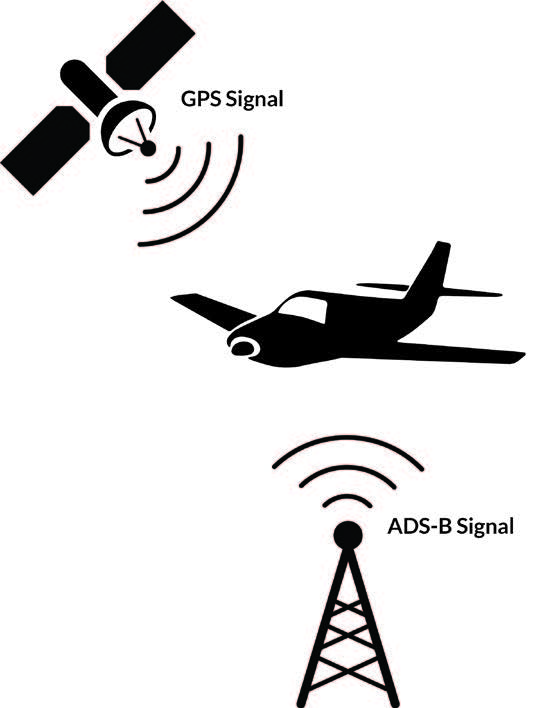
Stratus 4 is a battery-operated portable receiver that works with Stratus Insight, Stratus Horizon Pro, and other popular flight apps. It provides pilots with subscription-free in-flight weather and traffic and is a source of accurate WAAS (Wide Area Augmentation System) GPS position. It receives ADS-B (Automatic Dependent Surveillance-Broadcast) FIS-B (weather information),TIS-B (traffic information), and other related data and broadcasts it to compatible flight apps via a Wi-Fi network.
Stratus 4 includes AHRS (attitude heading reference system), a flight data recorder, and a pressure altitude sensor. See pages 17 and 18 for more information about these features.
The built-in display allows you to quickly view acceleration, GPS, battery level, and more. See pages 21-23 for more information.
Stratus portable receivers are classified as PEDs (Personal Electronic Devices) and complement the instrument panel in your aircraft. If there is a discrepancy between the receiver and the instrument panel, use the readings on your instrument panel.
Stratus 4 Interface

Compatible Flight Apps
Stratus 4 is optimized for Stratus Insight and Stratus Horizon Pro, but also offers a GDL 90 interface for other popular flight apps.
Stratus Horizon Pro displays AHRS information when connected to Stratus 4. The app also provides ATC audio playback and transcription features to Stratus portable receivers and other devices.
Stratus Insight displays AHRS, ADS-B weather, and ADS-B traffic. Other Stratus 4 compatible features include Synthetic Vision, pressure altitude, and flight data recording. For more information about Stratus Insight, refer to the Stratus Insight Pilot’s Guide.
For a list of other compatible flight apps, visit stratusbyappareo.com/ stratus-compatible-apps. Compatible flight apps run on Apple Watch®, iPad®, iPadOS®, iPod touch®, Mac®, and macOS®.
NOTE: You must have either Stratus Horizon Pro or Stratus Insight to apply Stratus 4 firmware updates.
Charging the Battery
Fully charge the receiver’s battery using the supplied USB-C charging cable prior to first use. We recommend a wall charger or that has 5V 3A output for fastest charging speeds.
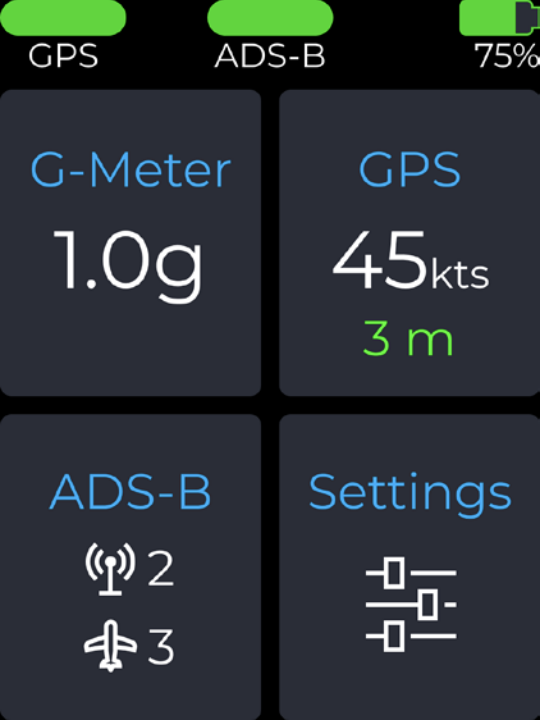
You can view the battery level in the upper right corner of the Stratus 4 display.
Using Stratus 4 at High Temperatures
Stratus 4 does not operate optimally if the temperature is higher than 95°F (35°C). The functionality of the receiver changes when the temperature exceeds 113°F (45°C), as shown in the table below.
| Temperature | When unplugged | When plugged in |
|---|---|---|
| Above 113°F (45°C) | Functional | Functional, but will not charge |
| Above 140°F (60°C) | Powers off | Functional, but will not charge |
| 152°F (67°C) | Powers off | Powers off |
Battery Care
The receiver contains a lithium battery and can run off of battery power for about eight hours when it is new. Use the following guidelines for maximum battery lifespan and safe operation.
- Do not store the receiver in direct sunlight or environments where temperatures are more than 113°F (45°C) or are lower than -4°F (-20°C). Remove unit from aircraft when not in use.
- Do not store the receiver for long periods of time without charging. This can permanently damage the overall battery capacity.
- The receiver contains a fan inside the battery compartment that will turn on if the battery reaches a high temperature. The fan draws ambient air in through vents on the front of the receiver and pushes out warm air through vents on the back.
- Do not incinerate or puncture the receiver or the battery.
- Dispose of the receiver in accordance with local requirements for the recycling of electronic appliances and batteries.
- Check with current Federal Aviation Administration (FAA) rules before carrying the receiver in checked luggage.
Batteries are consumables and will need to be replaced over time. It is normal for a lithium battery to lose capacity after many charge and discharge cycles or if it is subjected to high temperatures. A battery replacement kit can be purchased from Appareo.
Mounting Options
Stratus 4 can be mounted using the window mount or connected to an external antenna for more mounting options.
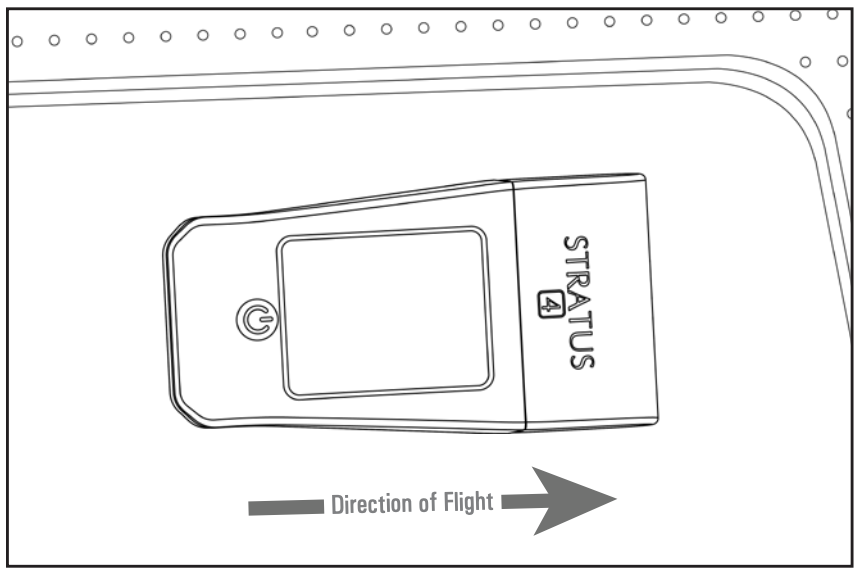
Window Mounted
Connected to an external ADS-B antenna*
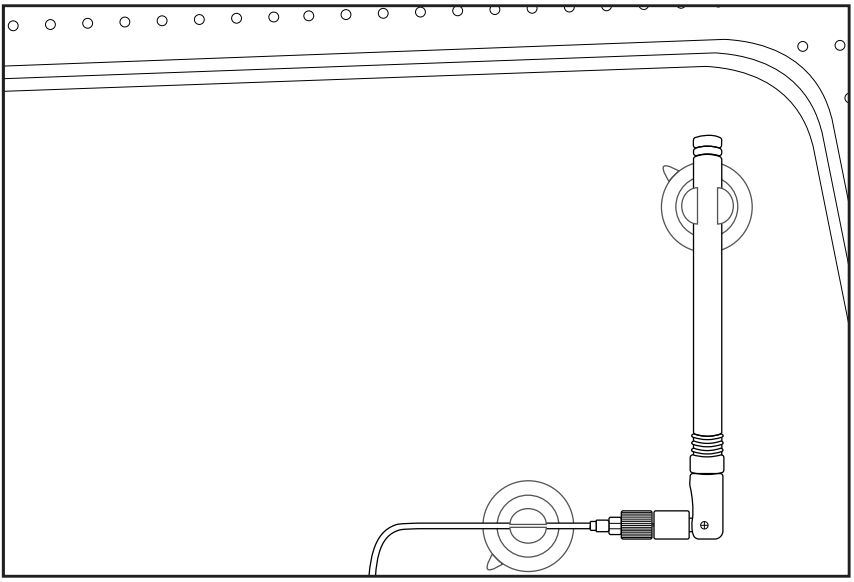
*Available from your Stratus retailer
Placing Stratus 4 in Aircraft
Do not turn on Stratus 4 until it has been mounted so that it can calibrate correctly.
Using the Window Mount
- Install the mount on a window inside the aircraft.Mounting on the dash significantly increases the chance of overheating.
- Orient Stratus 4 so that the arrow on the bottom of the receiver points in the direction of flight.If the receiver is facing the wrong direction, AHRS data will be incorrect.
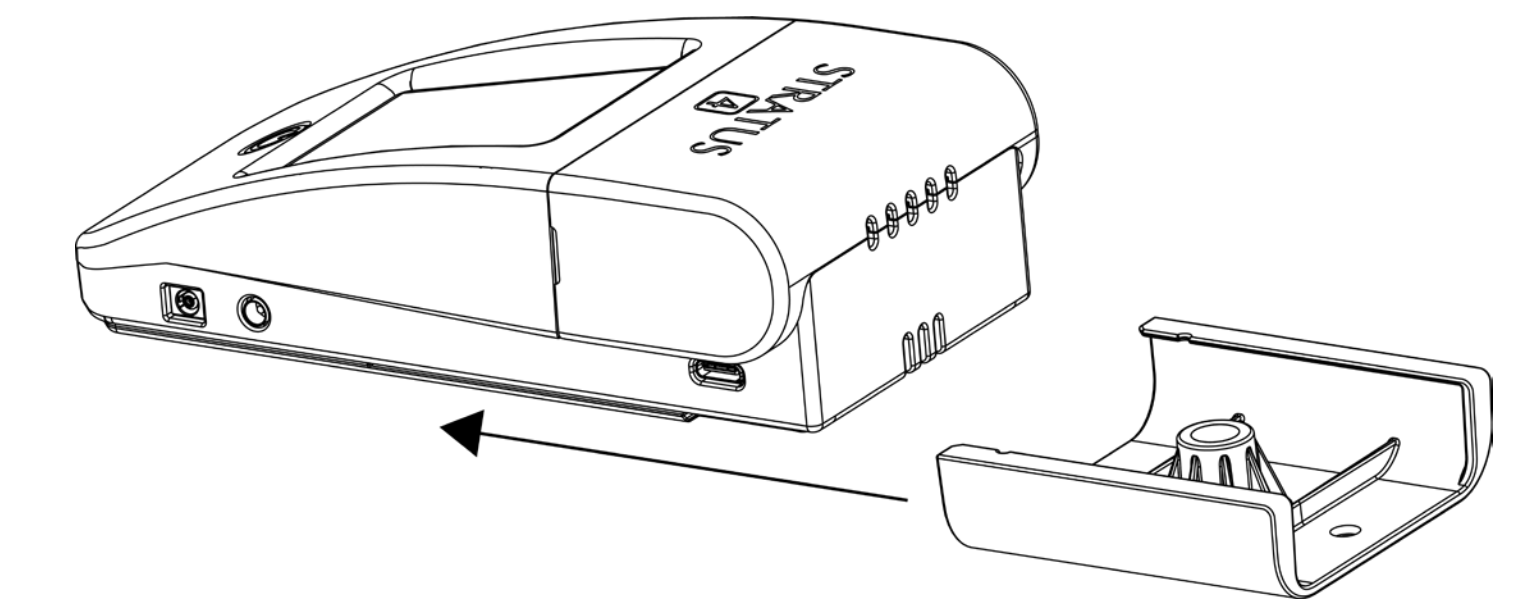
- Slide the receiver into the mount, as shown in the figure below.
Using an External Antenna (Optional)
When connected to an external ADS-B antenna, Stratus can be placed in any part of the aircraft that allows the antenna cables to reach the receiver.
Make sure that the arrow on the bottom of the receiver points in the direction of flight.
If the receiver is facing the wrong direction, AHRS data will be incorrect.
Refer to the following pages for instructions to install and connect remote GPS and ADS-B antennas.

Installing Remote Antennas
Stratus 4 has internal ADS-B and GPS antennas; however, remote ADS-B and GPS antennas are also available from your Stratus retailer. These antennas may improve the receiver’s reception quality and provide more receiver mounting options.
Installing a Remote GPS Antenna
Place the remote GPS antenna in a location inside your aircraft that provides an unobstructed view of the sky (GPS satellites). Secure the antenna to the aircraft with the magnet on the antenna.
Installing a Remote ADS-B Antenna
Place the remote ADS-B antenna in a location inside your aircraft that provides an unobstructed view of the ground (ADS-B ground stations). Secure the antenna to the aircraft with the included suction cups.
Connecting Remote Antennas to Stratus 4
WARNING: Make sure that you connect the antenna to the correct Stratus 4 port. Inserting an antenna connector into an incorrect port may result in permanent damage to the port or the antenna.
WARNING: Do not pinch or bend the external GPS cable, especially near the antenna. This could damage the cable and cause interference between the antenna and other on-board GPS receivers. The cable’s minimum bend radius is 1 inch.
The ports labeled GPS and ADS-B on the side of Stratus 4 are for remote antennas. Insert the remote antenna cable connector into its respective receiver port.

Turning Receiver On or Off
After mounting, press the power button to power on the receiver. If Stratus 4 is moved after being powered on, it must be re-calibrated in Stratus Horizon Pro or Stratus Insight.
Using Auto Power-On and Power-Off
By default, Stratus 4 will power on only when the power button is pushed. It will automatically power off after 30 minutes of no movement or GPS signal. This can be disabled in Stratus Horizon Pro.
Enable Stratus 4 to automatically power-on whenever the receiver receives power by enabling the Turn on When Plugged In switch in the Stratus Horizon Pro settings page. For more information about adjusting receiver settings, see page 25.
NOTE: If the receiver automatically powered on but you removed external power, the receiver functions differently depending on your aircraft speed.
- Traveling under 5 knots: receiver powers off after 30 seconds.
- Traveling over 5 knots: receiver stays on and uses battery power.
To override the automatic power-off, press the power button after removing external power.
Connecting to Stratus 4
Your tablet or phone must be connected to the Stratus Wi-Fi network (not Bluetooth) for the receiver to communicate with the app. Multiple devices in the cockpit can be connected to the receiver at the same time. Receiver Wi-Fi network security can be configured in Stratus Horizon Pro.
NOTE: The Stratus Wi-Fi network provides a wireless connection between the receiver and flight apps. It does not provide an internet connection.
- Tap the Settings icon on your tablet or phone’s home screen.
- Tap Wi-Fi.
- Make sure that Wi-Fi is enabled. Tap the Stratus wireless network, displayed under Choose a Network, to connect. Your Wi-Fi network name is on the label on the back of your receiver.
When your tablet or phone is connected to the Stratus wireless network, a checkmark appears next to the network name. - Verify that the receiver is connected in the settings page of Stratus Insight or Stratus Horizon Pro.
Calibrating Stratus 4
Stratus 4 is automatically calibrated to its mounting position a few seconds after being powered on. Do not power on Stratus 4 until it is mounted.
If Stratus 4 is moved after being powered on, it can be re-calibrated to straight and level in Stratus Horizon Pro or Stratus Insight. If your aircraft isn’t straight and level, the alignment can be manually adjusted in the app.
Using AHRS
Stratus 4 can be used for backup AHRS (attitude, heading, and reference system) in Stratus Insight and Stratus Horizon Pro to enhance situational awareness.
For the most accurate AHRS information, ensure that the receiver is mounted parallel with the centerline of the aircraft running front to back, and the arrow on the bottom of the receiver points in the direction of flight.
WARNING: AHRS data provided by the receiver should be used for supplemental purposes only.
Using Stratus Insight
Use Stratus 4 with Status Insight for maximum functionality and features. Some compatible features are listed below.
Weather
Stratus 4 receives ADS-B weather data and relays this information to your app.
Flight Data Recording
Stratus 4’s flight data recorder records position, speed, attitude, and barometric altitude data during each flight. You can manually record a flight or enable automatic flight recording in the app. Flights can be exported and viewed in Stratus Insight. About 20 hours of data can be stored in Stratus 4’s built-in memory.
Pressure Altitude Sensing
Stratus 4 has a pressure altitude sensor that sends uncorrected barometric pressure information to your app. This information is viewable while using the app and is also recorded in the flight data log.
Synthetic Vision
Using the altitude information provided by Stratus 4, Synthetic Vision shows a 3-D picture of terrain and obstacles where you are flying.
Viewing ADS-B Traffic
Stratus 4 receives 978 MHz and 1090 MHz traffic information from ADS-B ground stations and ADS-B Out-equipped aircraft and relays it to Stratus Insight and other compatible apps.
If air traffic data is detected by the receiver, it will display in your app relative to your aircraft.
Air-to-Air Traffic
Stratus 4 will only receive air-to-air broadcasts from other aircraft if they are ADS-B Out equipped and within range of the receiver. Air traffic that is not equipped with a UAT ADS-B Out or Mode S Extended Squitter transmitter will not be detected by the receiver air-to-air.
Rebroadcast Traffic
Using its network of ADS-B ground stations, the FAA can rebroadcast a custom traffic report to ADS-B Out equipped aircraft that are within a 15 nautical mile radius and within 3500 feet in altitude of the ADS-B Out aircraft. If your aircraft is not ADS-B Out equipped, it will not receive rebroadcast traffic unless it is within range of an ADS-B Out equipped aircraft that triggers it. If your aircraft is ADS-B Out equipped but is not in contact with an ADS-B ground station, it will not receive rebroadcast traffic.
The FAA can rebroadcast traffic information about aircraft equipped with the following transponder types: Mode C, Mode S, Mode ES, and UAT. Mode A transponders and primary radar targets detected by the FAA are not included in rebroadcasted traffic reports.
Since not all aircraft are ADS-B Out equipped and not all traffic is rebroadcast, the use of the receiver does not eliminate the need for “see-and-avoid” procedures.
Stratus 4 is not an active traffic interrogation system or ADS-B Out device.
NOTE: Stratus 4 is not likely to receive weather or rebroadcast traffic information on the ground because ADS-B information is broadcast by ground stations. The altitude at which Stratus 4 begins to receive weather and rebroadcast traffic information will vary depending on the distance to nearby towers and terrain and other obstacles that may be between the receiver and a tower.
Using the Stratus 4 Display

Status Indicators
Use the indicators at the top of the Stratus 4 display to quickly view GPS lock, ADS-B status, and battery level.
GPS
| Status Indicator Color | Meaning |
|---|---|
| Green | 3D Lock |
| Yellow | 2D Lock |
| Flashing Yellow | No GPS Lock |
ADS-B
| Status Indicator Color | Meaning |
|---|---|
| Green | ADS-B ground message received from multiple towers in the last 3 seconds. |
| Yellow | ADS-B ground message received from one tower in the last 3 seconds. |
| Gray | No ADS-B ground messages received in the last 3 seconds. |
G-Meter
Shows current acceleration in G’s.
IMPORTANT: If Stratus 4 is moved after being powered on, it will take a few seconds for the G-meter to re-calibrate.
GPS
Shows current ground speed in knots and GPS accuracy in meters. Tap the box to see the number of satellites you’re receiving information from.
ADS-B
Shows the number of ADS-B towers you’re receiving information from and the number of traffic targets that Stratus 4 is monitoring. The number of traffic targets shown is from ADS-B (978MHz) and ES (1090MHz) combined, with duplicates removed.
Apple Find My
Locate your receiver using Apple Find My. Refer to Using Apple Find My on page 24 for more information.
Display Orientation
Tap Settings on the receiver screen, then tap Display Orientation to change the display’s orientation.
Device Info
Tap Settings on the receiver screen, then tap Information to view
device information.
Using Apple Find My
Tap Settings on the receiver screen, then tap Find My Stratus to enable or disable Apple Find My. Once you’ve set up Find My through the receiver, you can locate it through the Find My app on an Apple device. For more information on using Find My, refer to apple.com/icloud/find-my.
Adjusting Receiver Settings
The settings page on the receiver screen and in Stratus Horizon Pro displays general information about the receiver, such as its serial number and firmware version. In the Stratus Horizon Pro app, you can adjust other receiver settings such as auto power-on and LED brightness.
- To access the settings page on the receiver screen, tap Settings.
- To access the settings page in Stratus Horizon Pro, tap the settings icon in the lower left corner.
Updating Firmware
WARNING: Do not attempt to apply firmware updates while in flight.
Receiver firmware updates will be released through Stratus Horizon Pro in-app updates. When you are connected to your receiver and open the app, a message will alert you that there is a firmware update. These updates may enable new capabilities or address known issues.
To apply the update, follow the on-screen instructions. It may take several minutes to update the receiver’s firmware. During the update, do not close the app or power off the receiver. You may need to reconnect the receiver to the app after the update is complete.
Resetting to Factory Settings
Power on the device, then press and hold the power button until the factory reset is complete, as shown on the Stratus 4 display. The factory reset auto-calibrates Stratus 4 and reconfigures it to its default settings.
NOTE: Resetting to factory settings will not delete flight data recorder logs.
Troubleshooting
If the receiver display shows an error when it’s powering on, try the troubleshooting steps below. If the error continues, contact [email protected].
- Power cycle the device.
-
- Disconnect Stratus 4 from external power.
- Press the power button to power off the device.
- Wait 1 minute, then power on the device again.
- Perform a factory reset using the instructions at the top of the page.
Compliance
FCC Declaration
This device complies with Part 15 of the FCC limits for Class B digital devices. This equipment generates, uses, and can radiate radio frequency energy and, if not installed and used in accordance with the instructions, may cause harmful interference to radio communications. Furthermore, there is no guarantee that interference will not occur in a particular installation.
If this equipment does cause harmful interference, the user is encouraged to try to correct the interference by relocating the equipment or connecting the equipment to a different circuit than the affected equipment. Consult an authorized dealer or other qualified avionics technician for additional help if these remedies do not correct the problem.
Operation of this device is subject to the following conditions: (1) This device may not cause harmful interference, and (2) this device must accept any interference received, including interference that may cause undesired operation.
Apple Find My Legal Notice
Use of the Works with Apple badge means that a product has been designed to work specifically with the technology identified in the badge and has been certified by the product manufacturer to meet Apple Find My network product specifications and requirements. Apple is not responsible for the operation of this device or use of this product or its compliance with safety and regulatory standards.
Servicing
A battery replacement kit for Stratus receivers can be purchased from Appareo.
Other issues are not field-serviceable. If you believe your receiver requires repair or maintenance, contact your original retailer for further instruction.
Repairs made outside of a Stratus-approved repair center could void the warranty and may result in further damage to the device.
Warranty
The Stratus Limited Warranty is valid two years after your receiver is shipped from the retailer. To view the full warranty, visit stratusbyappareo.com/resources.
Support
For product support, contact your dealer or original retailer.
FAQs & Troubleshooting
Answers to frequently asked questions and troubleshooting are found at stratusbyappareo.com/receiver-faqs.